Safari white screen: find the cause and fix it
The cause of a Safari white screen sits in one of a few layers: the website itself, Safari’s stored data or extensions, the WebKit engine, or software on your Mac. Don’t start by clearing everything. Four comparisons find the layer: another device, a Private Window, a second browser and the Web Inspector console. Menu paths below match Apple’s guides for Safari 26 and 27.
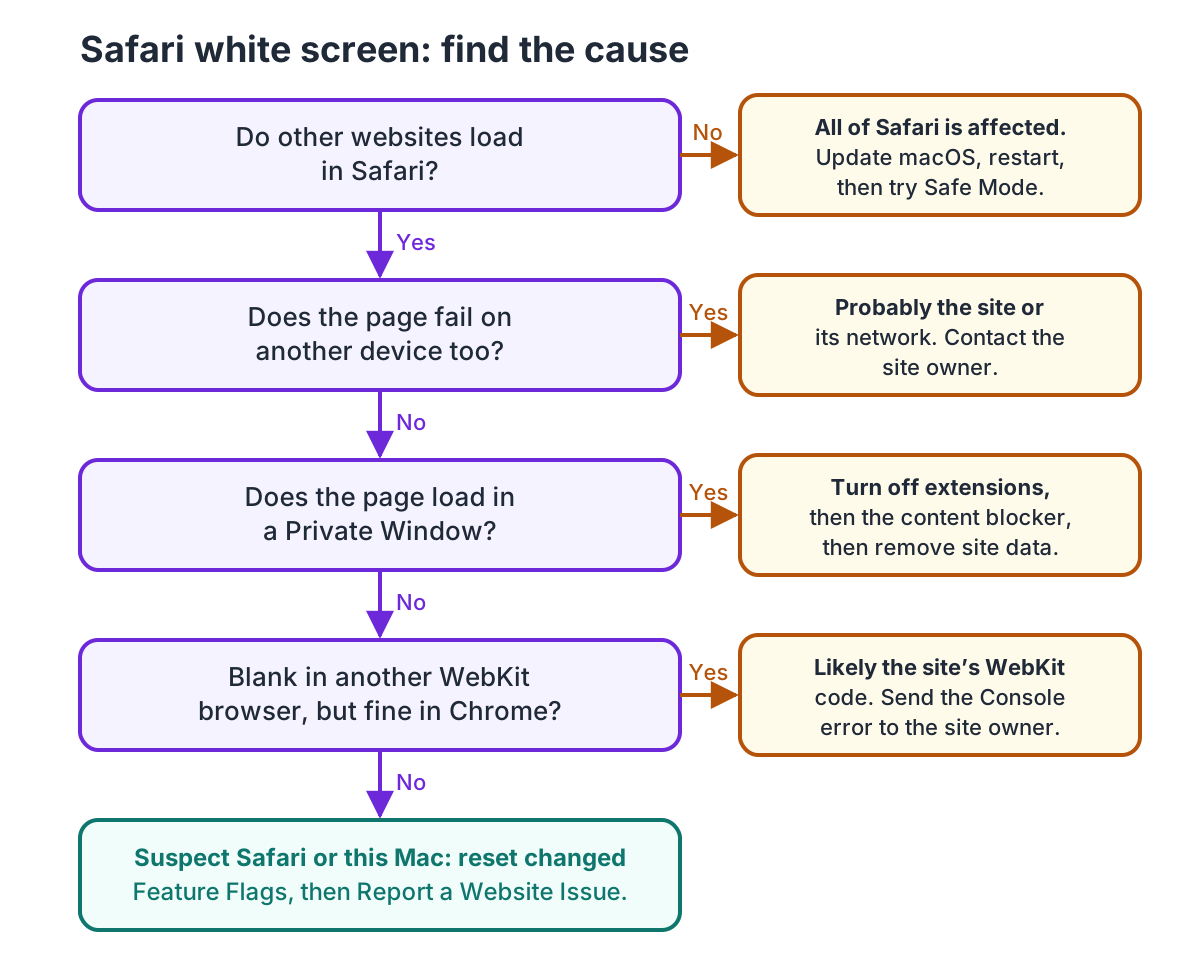
Is Safari showing a blank page on one website or every website?
Open two unrelated sites in Safari, then open the failing site on another device using the same Wi-Fi. If only one site fails across devices, the site or its network path is the likely cause.
| Test | What a pass means | What a fail means | Next step |
|---|---|---|---|
| Another unrelated site loads in Safari | The browser can render at least some pages; the issue may be site-specific | Several sites fail on this Mac | Test another device and browser on the same network |
| The same URL fails on another device and browser on the same Wi-Fi | The site or shared network path is implicated | The failure is isolated to this Mac or Safari | Contact the site owner if multiple devices fail; otherwise continue below |
Reload with ⌘R restores the page |
Likely transient load state | The same blank page returns | Compare Private Window and another browser |
Apple recommends comparing another browser or device on the same network; if both other devices and browsers fail, it says the website is probably responsible (Apple Support, checked November 2026). If the site is down in several places, stop changing Safari settings.
Does a Safari Private Window load the page?
Open File → New Private Window (or press ⇧⌘N) and visit the same URL. If it works there, Safari’s normal profile data or an extension becomes more likely; if it remains blank, site compatibility, network, or WebKit is still possible.
Private browsing gives the site a fresh session context and disables extensions that require website access by default on macOS Sonoma 14 or later. It does not prove whether stored data or an extension caused the difference (Apple Support, checked November 2026, Apple Safari extensions guide, checked November 2026).
If Private Window works, first turn extensions off at Safari → Settings → Extensions, then reload the normal window. If the page now loads, re-enable extensions one at a time until the failure returns; update or remove the extension that changes the result.
Next test the site’s content blocker: open Safari → Settings → Websites → Content Blockers, set the affected site to Off, and reload. Restore it to On after the test if the page remains blank. Apple documents this as a per-website setting (Apple Safari User Guide 27, checked November 2026).
If neither test fixes it, remove only that site’s data. Before doing so, make sure you know the password or can access its sign-in method.
- Open Safari → Settings → Privacy → Manage Website Data.
- Select the site in the list, then click Remove and Done.
- Reload the page in a regular window and sign in again if asked.
Removing website data may sign you out of websites and may change data used by other apps (Apple Safari User Guide 27, checked November 2026).
What does a second browser tell you?
Try one browser that uses WebKit and one that uses Chromium. If Safari and another WebKit browser both fail while Chromium loads the page, a WebKit compatibility issue becomes more plausible; if only Safari fails, its profile, settings, or Safari-specific bug moves up the list.
If the page blanks during scrolling or only at a narrow window size, note that trigger before changing settings. One developer’s May 2026 report, filed for iOS 26.5, also reproduced a blank screen in Safari and Chrome on a narrow Mac window and the project’s maintainer traced it to backdrop-filter on sticky elements inside a scroll container, though the reporter said the first fix didn’t cure it. In a separate July report, a contributor traced an older iPad’s blank page to regex lookbehind, which Safari supports only from 16.4. Both were bugs in the sites, each needing its own fix, which is why a blank screen alone doesn’t point to a Safari setting (yuvomi issue #166, May 2026, omnigent issue #1978, July 2026).
On a Mac, Octoweb can be the second WebKit browser: it renders with the system WKWebView, the same WebKit Safari uses, and every workspace you create after the default one gets its own WebKit data store. A page blank in Safari and Octoweb but working in Chrome points to the site’s WebKit code; a page blank only in Safari points to Safari’s profile or settings. The apps differ in configuration, so treat it as a clue, not proof. I build Octoweb, so weigh my take on it accordingly; it’s macOS-only and can’t stand in for a Chromium browser.
What should I check if Safari alone stays blank?
Use Safari’s Web Inspector to see whether the page reports a script or network error, then test macOS startup software only if Safari-wide failures remain. A console error is evidence for the site developer; an empty console does not prove the renderer is healthy. One older-iPad failure showed SyntaxError: Invalid regular expression: invalid group specifier name before the page rendered; a contributor traced it to regex lookbehind, which Safari supports only from 16.4 (omnigent issue #1978, July 2026).
To open the inspector, choose Safari → Settings → Advanced and select Show features for web developers. Then choose Develop → Show Web Inspector (⌥⌘I), open the Console tab, and reload the blank page. Copy the first red error and the page URL when you report it; leave out tokens or account details (Apple Safari User Guide 27, checked November 2026; WebKit, Enabling Web Inspector, checked November 2026; Apple Web Inspector reference, checked November 2026).
The same setting also adds a Feature Flags pane to Safari Settings (Apple Safari User Guide 27, checked November 2026). If you or a guide ever changed flags there, set them back and test again before you blame the site.
If Safari is not loading websites at all, quit and reopen Safari, then install available macOS updates. Safari updates with macOS, and Apple says to restart if the Mac doesn’t restart on its own, because some background updates take effect only after a restart (Apple Support, checked November 2026). If the problem began after you installed software that filters connections, such as a VPN or content filter, turn off its filtering, test, then turn it back on.
Safe Mode checks whether software loaded during startup is involved. On Apple silicon, shut down, hold the power button until startup options appear, choose a volume, then hold ⇧ and click Continue in Safe Mode. On Intel, restart and immediately hold ⇧ until the login window appears (Apple Mac User Guide, checked November 2026). Test the same page. If it loads in Safe Mode, leave Safe Mode with Apple menu → Restart and test again. If the blank page comes back after a normal restart, Apple says a login item or other software that Safe Mode keeps from loading is the cause; start by removing login items in System Settings (Apple Support, December 2025).
What should I do when Safari is blank on iPhone?
First compare the same site in another app or on another device; if it fails only in Safari, close and reopen the tab, then check Safari’s website data. On iPhone, Settings → Apps → Safari → Advanced → Website Data offers Remove All Website Data, which clears site data broadly. Use Clear History and Website Data only if you accept its broader effect (Apple Support, checked November 2026).
A May 2026 Twenty issue reported one iPhone web app blank in both Safari and Chrome, while Private browsing worked. The reporter suspected stale app data, and a later analysis in the thread pointed to a stale-chunk reload loop after a deploy; it describes one app and does not establish a general Safari cause (Twenty issue #20945, May 2026).
Which Safari white screen or black screen fix should I choose?
Take the action your comparisons point to, stop once the page loads, and keep only the change that fixed it.
- Pick the site owner if the same URL fails in multiple browsers and on another device using the same network.
- Pick Private Window, extensions, then site data if Safari’s private window works but the normal window does not.
- Pick a WebKit comparison and Web Inspector if Safari alone fails or the Console shows a repeatable page error.
- Pick Safe Mode and Apple Support if all Safari sites fail even after a restart and the same pages work elsewhere.
- Pick the least destructive change first: re-enable extensions and content blockers after testing, and remove only the affected site’s data.
The same checks can help with a Safari black screen; the color alone does not identify the cause. If the issue is a particular site that still fails after reload, Safari 26 can send a website compatibility report: reload, click the Page Menu button beside the Smart Search field, then choose Report a Website Issue (Apple Support, checked November 2026). For a separate guide to performance symptoms, see why Safari can feel slow on a Mac; for browser engine and resource comparisons, see which browser uses the least RAM and the Safari keyboard shortcuts guide.

Octoweb is free and open source, for macOS.
Install it →