How to allow pop ups on Safari for one site
How to allow pop ups on Safari depends on your device: on a Mac, allow them for one website in Safari’s Websites settings; on iPhone or iPad, switch off the Safari pop up blocker for all sites while you need it. In Safari 26 and 27 on macOS, the path is Safari → Settings → Websites → Pop-up Windows. Browsers tie window.open() to a recent click or key press, which is why a window opened a moment after your click can be blocked.
How to allow pop ups on Safari on a Mac?
Allow the specific site and leave the default for other websites at Block and Notify or Block.
- Open the site in Safari.
- Choose Safari → Settings → Websites.
- Select Pop-up Windows in the sidebar. Scroll down if you don’t see it.
- Find the site under Currently Open Websites and choose Allow from the menu beside it. The site is listed only while it’s open in a tab, which is why step 1 matters.
- Keep When visiting other websites set to Block and Notify or Block.
With Block and Notify, Safari shows an icon in the Smart Search field when it blocks a pop-up window on your Mac; click that icon to show it.
To make Allow the default for sites you haven’t configured, change When visiting other websites to Allow. Per-site rules you already set stay in place; remove them too if you want one setting to cover every site. The steps are the same in Apple’s Safari 26 and Safari 27 guides (Apple Safari User Guide 26 and 27, checked November 2026).
To undo a site exception, find it under Configured Websites, select it, and click Remove. Safari will then use the When visiting other websites default for that site (Apple Safari User Guide, version 27, checked November 2026, Websites settings, version 27).
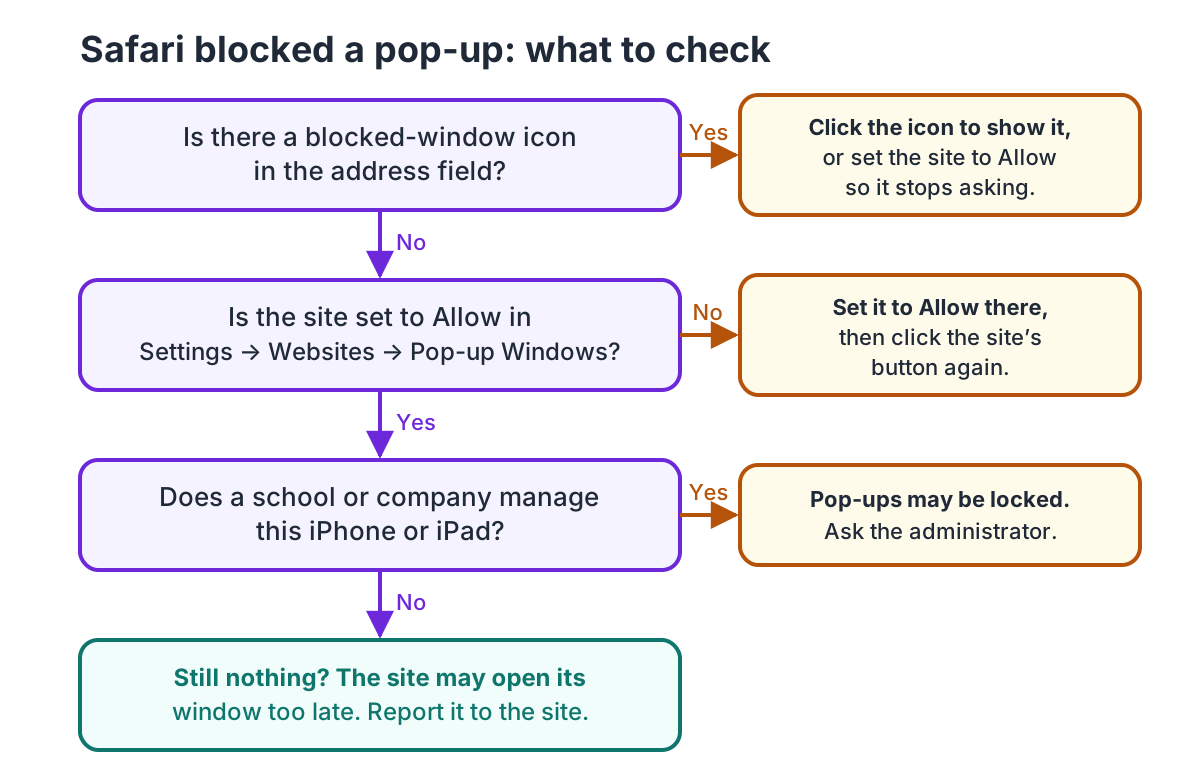
How do I allow pop-ups on iPhone or iPad?
To turn off the pop up blocker on Safari, switch Block Pop-ups off only while you use the trusted site, then switch it back on.
- Open Settings → Apps → Safari.
- Turn Block Pop-ups off.
- Return to Safari and retry the site’s button or link.
- When finished, return to Settings → Apps → Safari and turn Block Pop-ups on again.
Apple’s iPhone User Guide for iOS 26 documents this path (Apple iPhone User Guide, checked November 2026).
Why is Safari still blocking the pop-up after I allowed it?
Check the site rule, the blocked-window icon and any device restrictions first. Then think about timing: window.open() needs a recent click or key press, and that permission expires after a short, browser-defined time, so a site that first waits for a server reply or a timer can lose it. If allowing the site doesn’t help either, the site’s code may be the problem, and only the site can fix that.
| What you see | Likely cause | What to try |
|---|---|---|
| A blocked-window icon appears in the Smart Search field | Safari is set to Block and Notify | Select the icon to show that window, or set this trusted site to Allow. |
| The site still does nothing after you allowed it | The site may open the window after waiting for a server response or timer | Click the site’s own button again. If it still fails, contact the site; its code may need to open the window directly from the click. |
| Only ads or page features disappear | A content blocker can filter page content separately | In Safari → Settings → Websites → Content Blockers, check the setting for that site. Disable a blocker only for a trusted site, retry, then restore it. |
| You cannot change the pop-up switch on a supervised iPhone or iPad | Device management can set AllowPopups to off |
Ask the device administrator whether a Safari restriction is in place. |
You can test the activation rule without installing anything. Save this as popup-test.html, open the file in Safari, then click each button once. This is a docs-only test; I did not run it in Safari. With the usual popup protections, the immediate button should be more likely to open a tab, while the delayed one may be blocked. Safari settings and version can change the result.
<!doctype html>
<meta charset="utf-8" />
<title>Safari pop-up timing test</title>
<button onclick="window.open('about:blank', '_blank')">Open now</button>
<button onclick="setTimeout(() => window.open('about:blank', '_blank'), 2000)">
	Open after 2 seconds
</button>
The HTML Standard calls this transient activation: opening windows is gated on recent interaction, and that activation expires. The two-second delay demonstrates the difference; it is not a guaranteed Safari timeout (WHATWG HTML Standard, checked November 2026; MDN, “Transient activation,” checked November 2026). WebKit explains that some operations consume the activation before window.open() runs (WebKit, “The User Activation API,” checked November 2026).
What should I do if a Safari pop-up says my Mac has a virus?
Navigate away by entering a new address in Safari’s Search field. If the page has taken over the Mac, quit Safari, then hold Shift while reopening it so the old windows and tabs do not reopen. If unwanted ads keep returning, check Safari extensions and unfamiliar apps (Apple Support, “Block pop-up ads and windows in Safari,” checked November 2026).
Apple says some pop-ups use fake close buttons, warnings or prizes, and can trick you into downloading or installing unwanted software.
Which Safari pop-up setting should I choose?
Choose the narrowest setting that lets the task work, then restore the blocker if you changed a global switch.
- Pick Allow for one website on Mac if a trusted bank, school, booking, or work site needs a new window.
- Pick Block and Notify on Mac if you want Safari to stop the window and let you decide when one is requested.
- Pick Block on Mac if you do not need site pop-ups and do not want Safari to show a prompt.
- Turn Block Pop-ups off briefly on iPhone or iPad if a trusted site requires a window; turn it back on after the task.
- Leave suspicious warnings blocked and navigate away instead of interacting with the page.
For other Safari troubleshooting, see the Safari slowness diagnostic guide and what private browsing does and does not hide.

Octoweb is free and open source, for macOS.
Install it →