HTTP vs HTTPS: what happens before the padlock
HTTP vs HTTPS is the difference between sending web requests in readable form and protecting them with TLS encryption and server authentication. HTTPS hides page paths, form contents, and cookies from people between you and the site, but it doesn’t hide every clue or prove that a site is honest.
What changes in HTTP vs HTTPS?
HTTP sends the request and response without TLS protection; HTTPS carries HTTP inside a TLS connection that provides confidentiality, integrity, and server authentication. The default HTTPS port is 443 and the default HTTP port is 80, though servers can use other ports (RFC 9110, June 2022).
The port is a destination number, not the protection itself. A server can speak HTTPS on another port, but a browser normally assumes 443 for an https:// address and 80 for http://. The scheme also changes the web origin, so http://example.com and https://example.com are different origins (RFC 6454, December 2011).
That’s why “HTTPS is just HTTP on port 443” misses the important part. TLS checks that the server can present a certificate valid for the hostname, then protects the HTTP messages against reading or tampering in transit (RFC 9110, June 2022; RFC 8446, August 2018).
How does HTTPS work before the browser shows the padlock?
The browser shows a secure state only after the connection checks pass. In a common TLS 1.3 over TCP route, that looks like this:
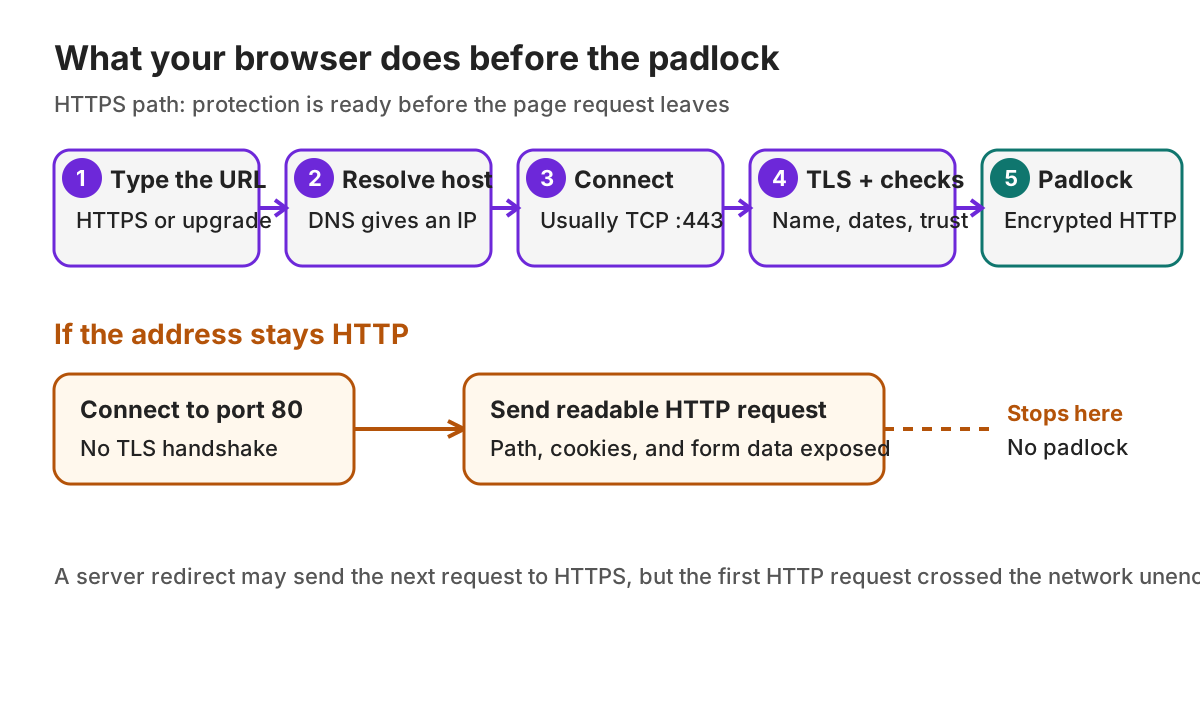
- You enter an address. If you type a host without a scheme, the browser may try HTTPS first or use a remembered HSTS policy. HSTS upgrades a known host before the browser sends an HTTP request; it can’t protect the first visit unless the host is already on a browser preload list (RFC 6797, November 2012; hstspreload.org, checked November 2026).
- The browser finds an IP address. It asks a resolver for the hostname. Whether the DNS lookup itself is encrypted depends on the browser, operating system, and network setup; HTTPS doesn’t automatically encrypt every DNS request (Google Chrome Help, checked November 2026).
- It connects to the destination. For the ordinary HTTPS-over-TCP case, the browser connects to port 443. On HTTP, it generally connects to port 80 and can send its request without a TLS handshake (RFC 9110, June 2022).
- TLS negotiates protection and the server proves its identity. The server sends a certificate chain and proves possession of the corresponding private key. The browser checks that the certificate matches the requested hostname, is within its validity period, and chains to a root it trusts. Details of trust and revocation checks vary by browser and platform (RFC 9110, June 2022; RFC 8446, August 2018; RFC 5280, May 2008; Apple Safari User Guide, checked November 2026).
- HTTP travels inside the protected connection. After TLS finishes, the browser sends the page request and receives the response as encrypted, integrity-protected data. If certificate or handshake checks fail, the browser warns or stops instead of treating the connection as authenticated (RFC 8446, August 2018; Apple Safari User Guide 27, checked November 2026).
What can someone on the network see over HTTPS?
HTTPS encrypts HTTP messages, including the path and query sent in the request, cookies, form data, and page contents. A network observer can still usually see the destination IP address and approximate traffic size. The hostname may also be exposed through DNS or TLS Server Name Indication, unless privacy features such as encrypted DNS or Encrypted Client Hello change that view (RFC 8446, August 2018; RFC 8744, July 2020).
| What a network observer sees | HTTP | HTTPS |
|---|---|---|
| Hostname | Usually visible in DNS and the HTTP request | Often visible in DNS or SNI; encrypted DNS and ECH can reduce exposure (RFC 8744, July 2020; RFC 9849, March 2026) |
| URL path and query | Readable in the request | Encrypted after the TLS handshake |
| Form data and cookies | Readable if sent | Encrypted in transit |
| Page text and response headers | Readable | Encrypted in transit |
| Destination IP address | Visible to the network carrying packets | Still visible to the network carrying packets |
| Traffic size | Visible | Still visible approximately |
The hostname caveat matters: HTTPS usually protects which page you opened on a site, not the fact that you connected to that site. DNS over HTTPS or DNS over TLS can conceal the DNS question from the local network, while ECH can conceal the TLS server name where both client and site support it (RFC 8744, July 2020; RFC 9849, March 2026). Neither hides the IP address from the network that routes your packets.
HTTPS also can’t make a malicious site benign. A valid certificate says the connection is encrypted to a server authorized for that hostname under the browser’s trust rules; it doesn’t verify the site’s claims, files, or intentions. Safari makes the same distinction in its certificate guidance (Apple Safari User Guide, checked November 2026).
When will a browser upgrade HTTP to HTTPS?
A browser may upgrade before making a request, based on a site policy or a user setting, but an upgrade isn’t guaranteed for every address. A server redirect is different: the browser first makes an HTTP request, receives a redirect, then reconnects over HTTPS, leaving that first request exposed.
| Mechanism | When it acts | What you may see |
|---|---|---|
| HSTS | The browser remembers the site’s policy, or the site is preloaded | The URL is changed to HTTPS before an HTTP request goes out (RFC 6797, November 2012) |
| Chrome “Always use secure connections” | The setting is enabled | Chrome upgrades URLs and warns before a site that does not support HTTPS (Google Chrome Help, checked November 2026) |
| Firefox HTTPS-Only Mode | You turn on Settings → Privacy & Security → Enable HTTPS-Only Mode in all windows | Firefox’s release notes say the mode keeps every connection secure and alerts you when a secure connection isn’t available (Firefox 83 release notes, November 2020; Firefox source, preferences.ftl, checked November 2026) |
| Safari automatic upgrades | Safari 15 and later support automatic HTTPS upgrades; Safari 18.2 added HTTPS-by-default on iOS, iPadOS, and visionOS | On macOS, an optional warning can appear before a non-secure fallback (WebKit, Safari 15, 2021; WebKit, Safari 18.2, December 2024) |
| Server redirect | The browser has already contacted the HTTP address | The server replies with a redirect; the next request may use HTTPS |
HSTS is the clearest defense against the first-visit downgrade for a site the browser already knows. Its policy arrives over secure transport, so a site’s first HTTP visit can still be intercepted before the browser learns that policy (RFC 6797, November 2012).
How can I check a connection and certificate myself?
Look at the browser’s view of the connection first. If you want to see the exchange itself, compare the same host with curl in Terminal. The outputs below are from my runs on November 8, 2026 (curl 8.7.1, macOS 26.7.2).
Confirm the address. Check that the full hostname is the one you intended and that the scheme is
https://; similar-looking hostnames can belong to someone else.Open the certificate. In Safari, choose Safari → Connection Security Details (Apple Safari User Guide 27, checked November 2026). In Chrome, open DevTools, press
⌘⇧P, typeprivacy, choose Show privacy and security, then select Security → Overview → View certificate (Chrome DevTools, updated February 2025).Check the name and validity. Confirm the certificate covers the hostname and its dates include today. A trusted issuer doesn’t prove a site’s claims or business are honest.
Stop at a warning. Safari’s Not Secure label means the page isn’t using an encrypted HTTPS connection. On a work computer, Chrome’s
NET::ERR_CERT_AUTHORITY_INVALIDusually means the certificate from your company’s HTTPS-inspecting proxy is missing;NET::ERR_CERT_DATE_INVALIDcan mean your device clock is wrong. Correct the hostname or device date, and ask a work administrator about managed inspection; do not bypass the warning (Apple Safari User Guide, checked November 2026; Google Chrome Help, checked November 2026).Watch a redirect and an HSTS policy with curl. GitHub is a good test because it does both:
curl -sI http://github.comHTTP/1.1 301 Moved Permanently Location: https://github.com/That first request crossed the network unencrypted before the server sent you to HTTPS. Now ask the HTTPS address and look for the HSTS header:
curl -sI https://github.com | grep -i strict-transportstrict-transport-security: max-age=31536000; includeSubdomains; preloadmax-age=31536000tells your browser to use HTTPS for github.com for one year without asking.includeSubdomainsextends that to every subdomain.preloadis GitHub’s request to be on the HSTS preload list built into Chrome, which Firefox, Safari and Edge base their own lists on, so even a first visit skips HTTP (RFC 6797, November 2012; hstspreload.org, checked November 2026).See the TLS handshake and certificate check.
curl -vI https://example.comprints the whole connection. The lines that matter, trimmed:* Connected to example.com port 443 * SSL connection using TLSv1.3 / AEAD-CHACHA20-POLY1305-SHA256 * subject: CN=example.com * expire date: Dec 25 22:56:35 2026 GMT * subjectAltName: host "example.com" matched cert's "example.com" * SSL certificate verify ok.Those are steps 3 and 4 of the diagram. Run
curl -vI http://example.comfor contrast: it connected on port 80 and gotHTTP/1.1 200 OKwith no redirect, so example.com still serves plain HTTP to anyone who asks for it. In curl’s output,>marks what you sent and<what came back;-Iasks for headers only (curl man page, checked November 2026).
If curl reports a certificate verification failure, check the address, date, and trust configuration rather than adding -k or --insecure, which turns off certificate verification. If the server rejects HEAD, the response may differ from a normal page load; the two commands don’t change browser settings, so there’s nothing to undo. For deeper traffic inspection, see the Mac guide to inspecting one site’s HTTPS with mitmproxy.
Which connection should you choose?
Choose HTTPS whenever it’s available, and do not send sensitive information over HTTP. HTTPS protects the trip between browser and server, while certificate warnings and suspicious site behavior still deserve attention.
- Pick HTTPS for browsing, sign-ins, forms, payments, downloads, and any connection that should resist interception or tampering.
- Use HTTP only for a site or local service with no HTTPS support, and avoid sending private data through it.
- Pause at a certificate warning until you confirm the hostname and cause; bypassing the warning removes the browser’s identity check.
HTTPS can hide the page path while leaving a hostname, IP address and traffic volume visible; private browsing does not hide that network activity.

Octoweb is free and open source, for macOS.
Install it →