Flush DNS on Mac: the command and what it misses
To flush DNS on a Mac, run sudo dscacheutil -flushcache; sudo killall -HUP mDNSResponder in Terminal. That clears the resolver cache inside macOS, and it’s often not where the stale address lives: Chrome and Firefox keep their own DNS caches, a line in /etc/hosts can pin a name to an old address, and your router, VPN or encrypted DNS provider caches answers for as long as each record’s TTL allows. Compare the browser, the macOS lookup and dig first, then clear only the layer that disagrees.
How do I flush the DNS cache on a Mac?
Open Terminal and run the line below. I didn’t run it for this article because it needs sudo, so treat it as docs-only. Apple’s manual pages (man dscacheutil and man mDNSResponder on macOS 26.7.2) document dscacheutil -flushcache and describe mDNSResponder’s cache, but I found no single “flush DNS” command in Apple’s documentation. This combined line is the one current macOS guides give (OS X Daily, 2025).
sudo dscacheutil -flushcache; sudo killall -HUP mDNSResponder
Type your Mac administrator password when Terminal asks; the password doesn’t appear as you type. A successful run normally prints nothing, and that silence doesn’t prove the website now resolves to the right address. Apple’s dscacheutil manual says -flushcache clears the entire cache: “This should only be used in extreme cases.”
There’s nothing to undo: macOS refills its cache as apps look up names again, and your browser history and cookies aren’t touched. If sudo rejects the password, use an administrator account.
Why can a site still show the wrong address after I flush DNS?
Because the lookup can be answered at several layers, and the command only addresses local macOS caches. Find the layer first; its owner determines what to clear and whether waiting for a DNS time-to-live (TTL) is the only option.
| Layer | Who controls it | How to clear or check it | How long it can matter |
|---|---|---|---|
| Browser host cache | The browser | Clear Chrome's host cache or Firefox's DNS cache; quit and reopen the browser if the result remains | Browser-controlled; there is no single duration for all browsers |
| macOS resolver | macOS and any installed DNS configuration | Run the flush command above; compare dscacheutil with dig |
Cache policy varies; the manual does not promise one fixed lifetime |
/etc/hosts |
A local file and whoever edited it | Inspect the matching hostname; correct or remove the entry, then retry | Until the file changes |
| Configured resolver | Router, ISP, VPN, DNS app, or encrypted DNS profile | Check which resolver is active; ask its operator or administrator to clear its cache | Usually governed by the DNS record TTL; some resolvers may serve stale data during outages |
| Authoritative DNS | The domain's DNS operator | Check the published record and its TTL; wait for recursive caches to refresh | The record's TTL is measured in seconds, and recursive resolvers may have stale-data policies (RFC 1035, 1987; RFC 8767, 2020) |
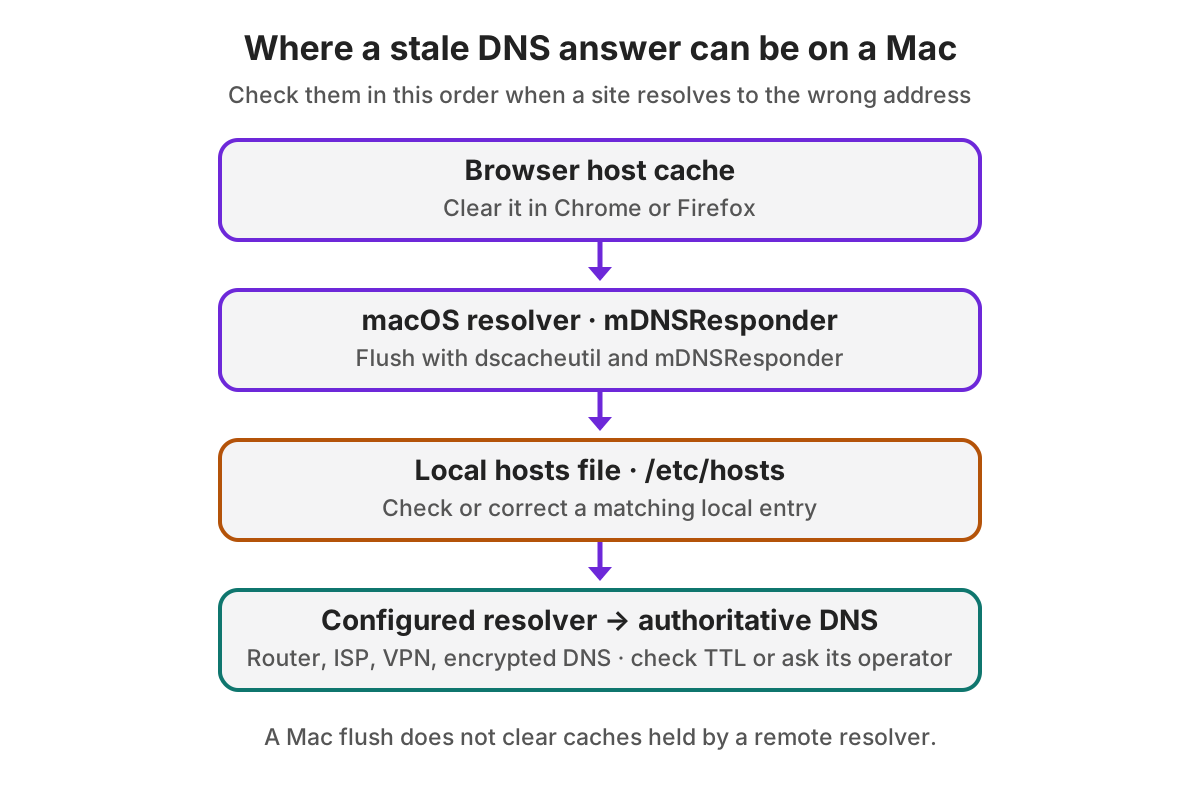
Apple's DNS session explains that DNS can use a network's resolver, an app-selected encrypted resolver, or a VPN's DNS settings (Apple Developer, WWDC 2020, checked November 2026). The flush command runs on this Mac, so it can't clear a cache held by a router, ISP, VPN or remote encrypted resolver. The DNS TTL tells a recursive resolver how long it may cache a record; RFC 8767 also describes serving stale data after expiry when an authoritative server cannot be reached (RFC 1035; RFC 8767).
How can I tell which DNS cache is stale?
Compare one hostname through the system lookup and a DNS query, then compare those results with the browser that fails. Run these read-only checks on a connected Mac; they query example.com, so substitute the hostname that is failing.
dscacheutil -q host -a name example.com
dig +short example.com
Here is a healthy lookup from a connected Mac (macOS 26.7.2, November 8, 2026). I trimmed it to the IPv4 answers. Your addresses will differ; what matters is whether the answers match.
dscacheutil -q host -a name example.com
ip_address: 104.20.23.154
ip_address: 172.66.147.243

dig example.com (answer lines only)
example.com.  300  IN  A  172.66.147.243
example.com.  300  IN  A  104.20.23.154
The 300 is the TTL in seconds: any resolver between you and the domain may keep serving that answer for up to five minutes. A record with a TTL of 86400 can stay stale for a day, and no command on your Mac shortens that.
dscacheutil runs its lookup against the macOS Directory Service cache, according to its manual, so it may return cached data. dig asks a DNS resolver directly, so it may not take the same route as an app using Secure DNS, a VPN or Private Relay. Apple describes VPN DNS as taking precedence inside the VPN tunnel (Apple Developer, WWDC 2020, checked November 2026).
Use the differences as clues, not as proof of one cause:
- Only one browser is wrong: clear that browser's host cache and check whether its Secure DNS provider differs from the Mac's configured resolver.
dscacheutiland the browser agree, butdigdiffers: check/etc/hosts, the Mac's DNS configuration, and whether the browser or system uses a VPN or encrypted resolver.- All three agree on the wrong address: inspect the hostname in
/etc/hosts, then check the configured resolver or the domain's current record and TTL. A local flush can’t force a remote resolver to forget an unexpired answer. - The commands return nothing or an error: first confirm the Mac is online and the hostname is spelled correctly. A failed query doesn’t mean a cache needs flushing.
How do I clear the DNS cache on a Mac in Chrome, Firefox, or Safari?
Clear the browser layer only when the problem is browser-specific. Chrome labels its controls Clear host cache and Flush socket pools (Chromium net-internals source, checked November 2026).
- Chrome: open
chrome://net-internals/#dnsand select Clear host cache. If the site is still stuck on an old connection, openchrome://net-internals/#socketsand select Flush socket pools. Chrome warns that this “may break pages with active connections”, so skip it unless you need it. - Firefox: open
about:networking#dnsand click Clear DNS Cache (Firefox source, aboutNetworking.ftl, checked November 2026). - Safari: I found no DNS cache page for Safari in Apple’s documentation, so start with the macOS comparison and check any DNS profile or VPN.
Chrome's Use Secure DNS setting is under Settings → Privacy and security → Security → Advanced → Use secure DNS. If you selected a custom provider, test the default provider setting or temporarily turn Secure DNS off; Chrome says Secure DNS encrypts lookups and may use a provider you choose (Google Chrome Help, checked November 2026).
What should I check if DNS still is not updating on my Mac?
Check local overrides and the active resolver before changing DNS servers. A matching /etc/hosts line can supply a local address without waiting for public DNS, while VPNs and DNS profiles can route lookups to a different resolver than expected.
- Check for an exact hostname in
/etc/hosts; do not remove entries you did not add or recognize. Correct only a mapping you intentionally set. - In System Settings → Network → [active Wi-Fi or Ethernet service] → Details → DNS, inspect the configured servers. Apple’s current Mac User Guide documents this path (Apple Support, checked November 2026).
- If a VPN is connected, check its DNS configuration or disconnect it only if your work or network rules allow. Apple notes that resolution inside a VPN tunnel uses that VPN's DNS settings.
- If you use a DNS filter, encrypted DNS profile, or iCloud Private Relay, check its own status and configuration. Apple's platform security guide says Private Relay includes DNS name-resolution requests (Apple Platform Security, checked November 2026).
- If the wrong answer comes from the configured resolver, contact its operator or wait for the published TTL to expire. Repeating the Mac flush will not erase a router, ISP, VPN, or other remote resolver's cache.
If a proxy is part of the setup, keep it distinct from the DNS resolver: a proxy changes how matching traffic is routed. See the guides to routing one site through an SSH SOCKS proxy, PAC rules on Mac, and inspecting one site's HTTPS with mitmproxy.
I build Octoweb, so weigh my take on it accordingly. It can route one site through an HTTP, SOCKS5 or SSH proxy on macOS 14 or later, but I haven’t confirmed which resolver a proxied tab uses, so don’t treat it as a DNS fix.
Which DNS layer should I clear first?
Clear the narrowest layer that disagrees with the others, then repeat the same comparison. That keeps the fix tied to evidence and tells you when the answer is outside your Mac's control.
- Pick the browser cache if one browser gives a different result from the system lookup.
- Pick the macOS flush if the system lookup is stale and no hosts-file entry or alternate resolver explains it.
- Pick the hosts-file edit if a matching local mapping is the source of the wrong address.
- Pick the resolver operator or time if the configured resolver returns an old answer while the record's TTL is still active.
For changing how one site’s traffic leaves your Mac rather than how its name resolves, see the PAC file guide.

Octoweb is free and open source, for macOS.
Install it →