How to reopen a closed tab on Mac or Windows
To reopen a closed tab, press ⌘⇧T on a Mac or Ctrl+Shift+T on Windows; in Chrome, press it again to step back through earlier closures. Chrome keeps 25 recently closed entries and Firefox 25 closed tabs per window, so the shortcut can’t reach anything older. If it misses the page, use the browser’s Recently Closed menu, then its session restore. After a crash, quit the browser and copy its session files before you launch it again.
What is the shortcut to reopen a closed tab in Chrome, Safari, Firefox or Edge?
Press ⌘⇧T on a Mac or Ctrl+Shift+T on Windows; it works in Safari, Chrome, Firefox and Edge. In Chrome, pressing it again reopens earlier tabs in the order they were closed; Apple documents the last closed tab and window, and Microsoft the last closed tab (Apple Safari User Guide 27, checked November 2026, Google Chrome keyboard shortcuts, checked November 2026, Microsoft Edge keyboard shortcuts, checked November 2026).
Firefox binds the same keys to a command that restores the last closed tab, window or session, and adds ⌘⇧N / Ctrl+Shift+N for the last closed window (Firefox source, browser-sets.inc.xhtml, checked November 2026).
The list behind the shortcut is short. Chromium, which Chrome and Edge are built on, keeps at most 25 recently closed entries (Chromium source, tab_restore_service_helper.h, checked November 2026). Firefox keeps 25 closed tabs per window and 5 closed windows by default, set by browser.sessionstore.max_tabs_undo and max_windows_undo in about:config (Firefox source, firefox.js, checked November 2026). Apple doesn’t publish Safari’s limit.
If you closed a batch of 30 tabs one by one, the earliest few are no longer reachable by shortcut; search history for them instead.
If the shortcut seems to do nothing, click inside the browser window, then press it again.
Where is the recently closed tab menu?
Use the browser’s History menu to select the page or window by name; to reopen closed tabs in Safari, choose History → Recently Closed.
| Browser | Shortcut: Mac / Windows | Recently closed menu (Mac) | How many it remembers | Restore after quitting |
|---|---|---|---|---|
| Safari | ⌘⇧T / Mac only |
History → Recently Closed, Reopen Last Closed Tab, Reopen Last Closed Window | Not published | History → Reopen All Windows from Last Session, or Safari → Settings → General → Safari opens with |
| Chrome | ⌘⇧T / Ctrl+Shift+T |
⋮ → History, under Recently closed | 25 entries | Settings → On startup → Continue where you left off |
| Firefox | ⌘⇧T / Ctrl+Shift+T |
History → Recently Closed Tabs or Recently Closed Windows | 25 tabs per window, 5 windows | Settings → General → Startup → Open previous windows and tabs |
| Edge | ⌘⇧T / Ctrl+Shift+T |
… → History (no recently closed list documented) | Not published | Settings → Start, home, and new tabs → Open tabs from previous session |
Sources: Safari User Guide 27, Chrome startup settings, Tabiary’s Chrome recovery guide for Chrome’s menu, Firefox’s menu labels and settings labels, and Edge’s tab recovery guide, all checked November 2026.
Safari also has Automatically close tabs under Safari → Settings → Tabs; set it to Manually if you don’t want Safari closing tabs for you after a day, a week or a month (Apple Safari User Guide, checked November 2026).
How do I reopen a closed window or restore tabs from the last session?
For one window you just closed, use the shortcut again or select that window under Recently Closed. For tabs that disappeared when you quit the browser, choose the browser’s startup restore option or its command to reopen all windows from the last session.
In Safari, open History → Reopen All Windows from Last Session. To make Safari do this every time, choose Safari → Settings → General and pick a setting from the Safari opens with menu that reopens the last session’s windows. Holding Shift while you open Safari skips restoring windows for that launch (Apple Support, checked November 2026).
To restore tabs on Chrome after you quit, set Settings → On startup → Continue where you left off before you need it. In Edge, choose Settings → Start, home, and new tabs → Open tabs from previous session. In Firefox, turn on Settings → General → Startup → Open previous windows and tabs; if it’s off, ⌘⇧T restores the last session when there’s no closed tab or window to bring back (Google Chrome Help, checked November 2026, Microsoft Edge Learning Center, checked November 2026, Firefox source, SessionWindowUI.sys.mjs, checked November 2026).
What should I do after a browser crash or forced quit?
First, check whether the browser offers a restore prompt or shows the missing tabs under its recently closed menu. If it does, restore from there. Firefox restores the previous session after a crash by default; the setting behind it is browser.sessionstore.resume_from_crash, true out of the box (Firefox source, firefox.js, checked November 2026).
If no restore prompt appears, quit the browser and copy its session files to another folder before you open it again. Keep the originals untouched and work from the copy.
I couldn’t find where those files live in Google’s or Apple’s documentation. A tab-manager vendor’s guide puts Chrome’s session state in the profile’s Sessions folder, in files named Session_* and Tabs_*; Mac Forensics lists Safari’s ~/Library/Safari/LastSession.plist. Treat both as unofficial, and if the named file is missing, don’t create one or borrow another browser’s path (Tabiary, checked November 2026, Mac Forensics, checked November 2026).
Firefox’s own code writes the session to sessionstore-backups/recovery.jsonlz4 inside the profile; open about:support and click Show in Finder next to Profile Folder to get there (Firefox source, SessionFile.sys.mjs and aboutSupport.ftl, checked November 2026).
Can I recover a private tab or a cleared history?
Usually, no: a private window is designed not to retain ordinary browsing history after it closes, and clearing history removes the history list you would otherwise search. Safari says private browsing details aren’t saved, and its Automatically close tabs setting can close tabs after one day, one week, or one month. Set it to Manually if you want to keep them until you close them (Apple Personal Safety User Guide, checked November 2026, Apple Safari User Guide, checked November 2026).
A restored tab is not necessarily a restored page state. The browser may reopen the URL without bringing back typed form text, a draft that was never saved, or the exact scroll position. Save work in the site before closing a tab if that state matters.
Which recovery step should I try first?
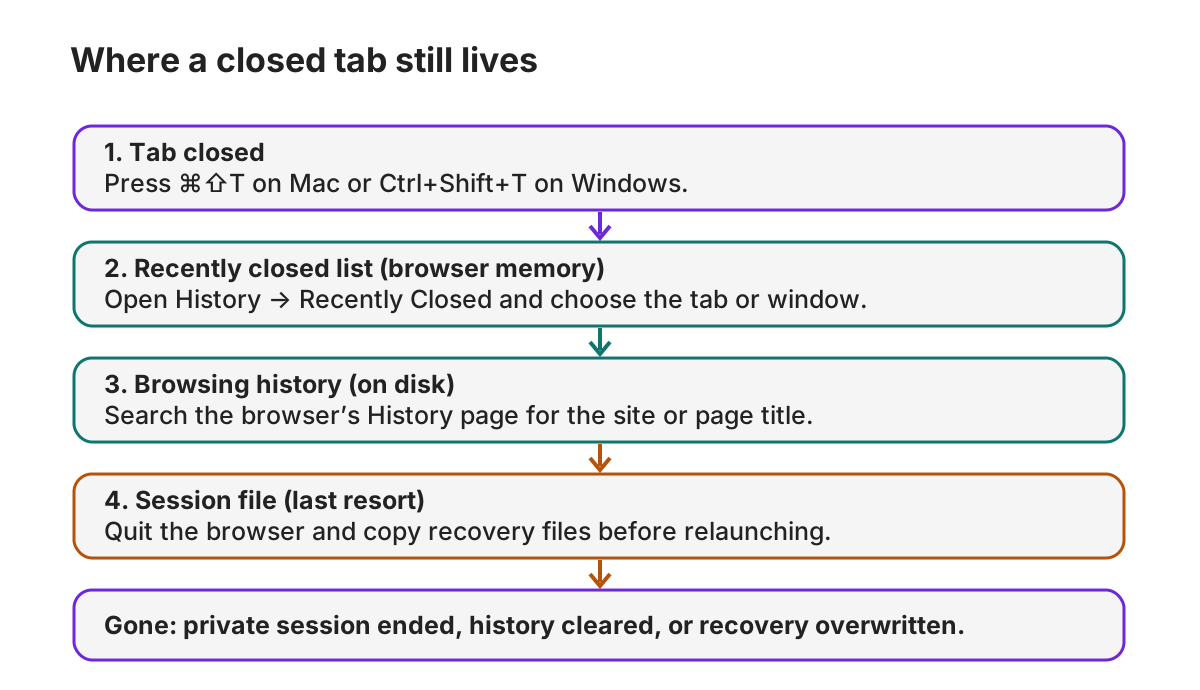
Pick the earliest place that still has the tab:
- Pick the shortcut if you just closed the tab or window; in Chrome, press it again to move back through recent closures.
- Pick History if you remember the page title or need a window that is no longer the newest closed item.
- Pick session restore if the browser crashed or you quit it and want the previous window set.
- Pick a file copy only when normal recovery is unavailable; preserve the originals before launching again.
I build Octoweb, so weigh my take on it accordingly. Octoweb also uses ⌘⇧T for a closed tab and has session restore, but private tabs never enter its reopen list, and restore does not recover typed text or scroll position. It is Mac-only and uses WebKit, so it is not a Windows option; the Mac tab-switching guide covers other browser shortcuts.
For Safari’s menu paths, see the Safari keyboard shortcuts guide, and for finding a page that is no longer in the closed-tab list, use the Safari history search guide.

Octoweb is free and open source, for macOS.
Install it →