Octoweb 0.17: email client, notes, and Chrome extensions
Octoweb 0.17.0 is out. The last release put a terminal under the page. This one brings in the two things that still pulled you out of the browser all day: your inbox and your notes. It also runs Chrome extensions, and the terminal now comes back after a restart.
brew upgrade --cask octoweb
Two shortcuts moved
Read this first if your fingers know the old keys:
⌘⇧Inow opens Mail. Web Inspector moved to⌥⌘I, the key Safari and Chrome use for it.⌘[and⌘]in the terminal now step through splits, not tabs.⌘1–⌘9still jump to a terminal tab.
Both can be remapped in Settings, like any other binding.
Mail in a pane beside the page
Most mail that needs you points at the web: a pull request to review, a doc to comment on, an invoice to pay, a sign-in link. An email client for Mac in another window means the same loop the terminal had: read, switch, click, switch back.
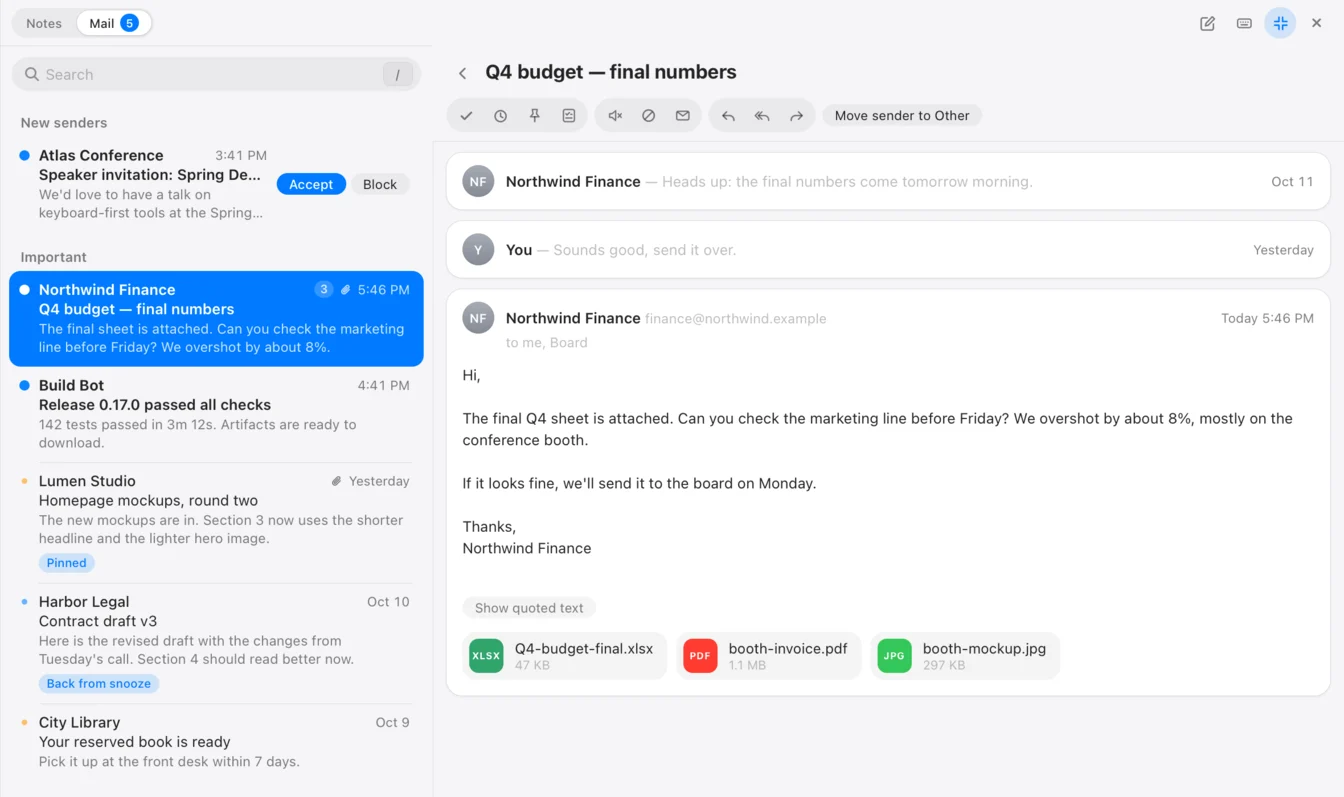
Press ⌘⇧I and your inbox opens in a pane on the right, next to the page. Links open as tabs in the current workspace, and the full address shows on hover before you click. Press ⌘⇧I again to hide it, or ⌘⇧↵ to make it fill the window, with the conversation list on the left and the thread beside it.
Accounts
Add accounts in Settings (⌘,) → Mail. Type the address and Octoweb picks the provider for gmail.com, icloud.com, me.com, outlook.com, hotmail.com and a few more. For anything else, pick it yourself.
| Provider | How it signs in |
|---|---|
| Gmail and Google Workspace | Sign in with Google, or an app password (needs 2-Step Verification) |
| iCloud | An app-specific password |
| Private Email (Namecheap) | Your mailbox password |
| Outlook and Microsoft 365 | OAuth through an app you register in Microsoft Entra; Microsoft turned off passwords |
| Any IMAP server | Your password, with the IMAP and SMTP servers you enter |
Passwords and sign-in tokens go into the macOS Keychain, never into the config file. Check connection signs in to both IMAP and SMTP and shows the server's answer when it fails.
Google hasn't finished reviewing Octoweb's sign-in yet, so Sign in with Google shows an "unverified app" screen first. Click Advanced to continue, or use an app password until the review is done.
Each account belongs to the workspaces you pick, and a new one starts in the workspace you're in. The inbox, search, notifications and unread count only ever show that workspace's accounts. Work mail stays in the work workspace, and personal mail doesn't follow you into a screen share.
Important first, everything else grouped
The inbox is one list across a workspace's accounts, in two parts:
- Important is mail from people. Pinned conversations sit at the top.
- Other is newsletters, receipts and notifications, grouped by sender into one row each, so 40 shop emails take one line.
A message counts as Other when it carries mailing-list headers (List-Unsubscribe, List-Id), says it was sent automatically, or comes from a noreply or notifications address. When the guess is wrong, Move sender to Important (or to Other) on the thread fixes it for that sender from then on.
There's also an optional Gatekeeper, an email screener per account, off by default. Switching it on accepts everyone already in your mail, people you wrote to included. After that, mail from a new sender waits under New senders with Accept and Block buttons. Blocking archives the conversation, and later mail from that sender is archived quietly.
Triage without the mouse
With the pane focused, single keys act on the conversation you're on:
| Keys | What happens |
|---|---|
j / k |
Next / previous; inside a thread, the next or previous thread |
↩ |
Open |
e |
Done: archive it, on the server too |
h |
Snooze |
p / m |
Pin / mute (mute archives later replies too) |
b |
Block the sender |
t |
Turn it into a task in your notes |
u |
Mark unread |
r / a / f |
Reply / reply all / forward |
c |
Compose |
/ |
Search |
x, ⌘A |
Select one / select all |
⌘Z |
Undo the last action |
? |
All the keys |
Done moves mail to All Mail on Gmail and to the archive folder everywhere else. You can name that folder per account; without one, Octoweb finds the server's archive folder or creates Archive. A selection gets a bar with Done, Snooze, Mark read, Pin and To notes, so clearing 30 receipts is ⌘A, then e.
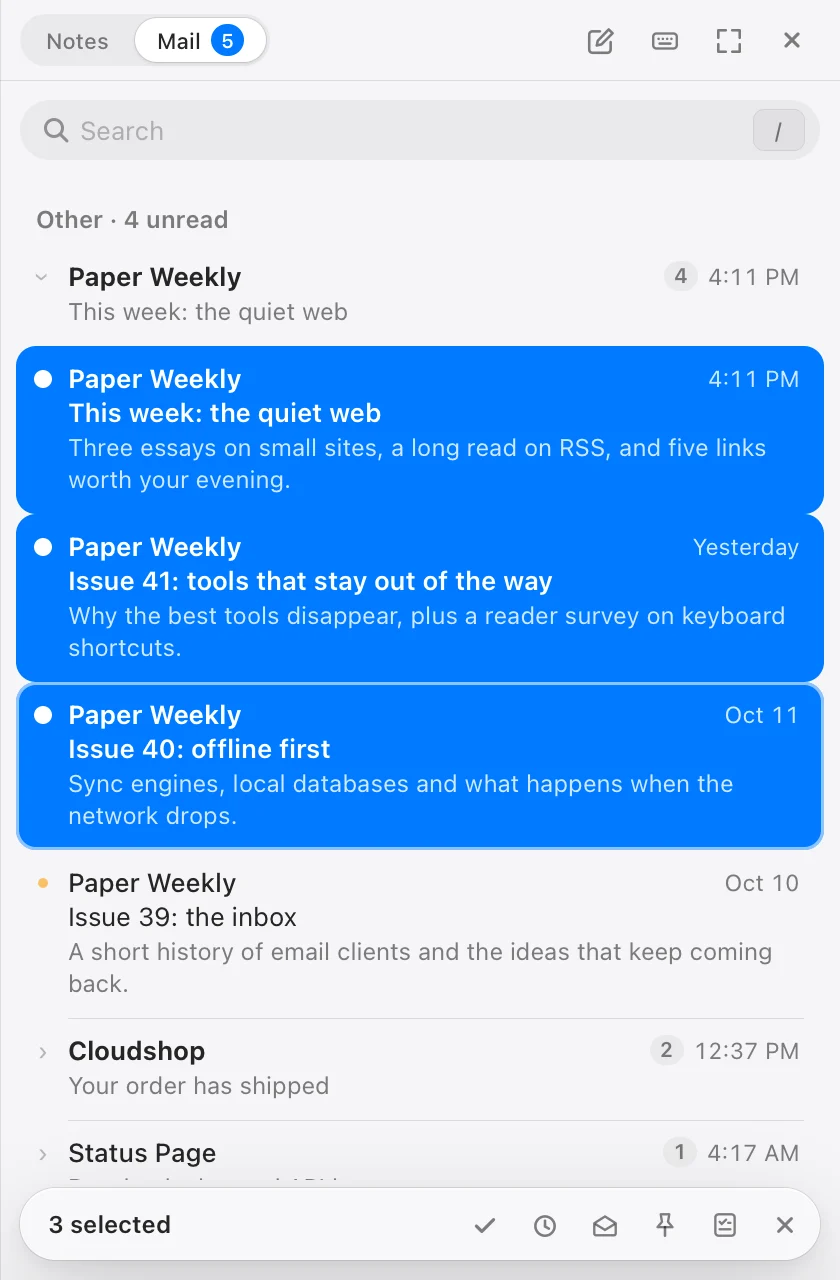
Coming from Apple Mail? Its chords work too: ⌘R, ⇧⌘R and ⇧⌘F reply, reply all and forward, ⌘N composes, ⌃⌘A archives, ⇧⌘U marks unread, and ⇧⌘D sends.
Every action can be undone. The bar at the bottom offers Undo for 6 seconds, and ⌘Z works until your next action.
Later: snooze email, undo send, send later, remind me
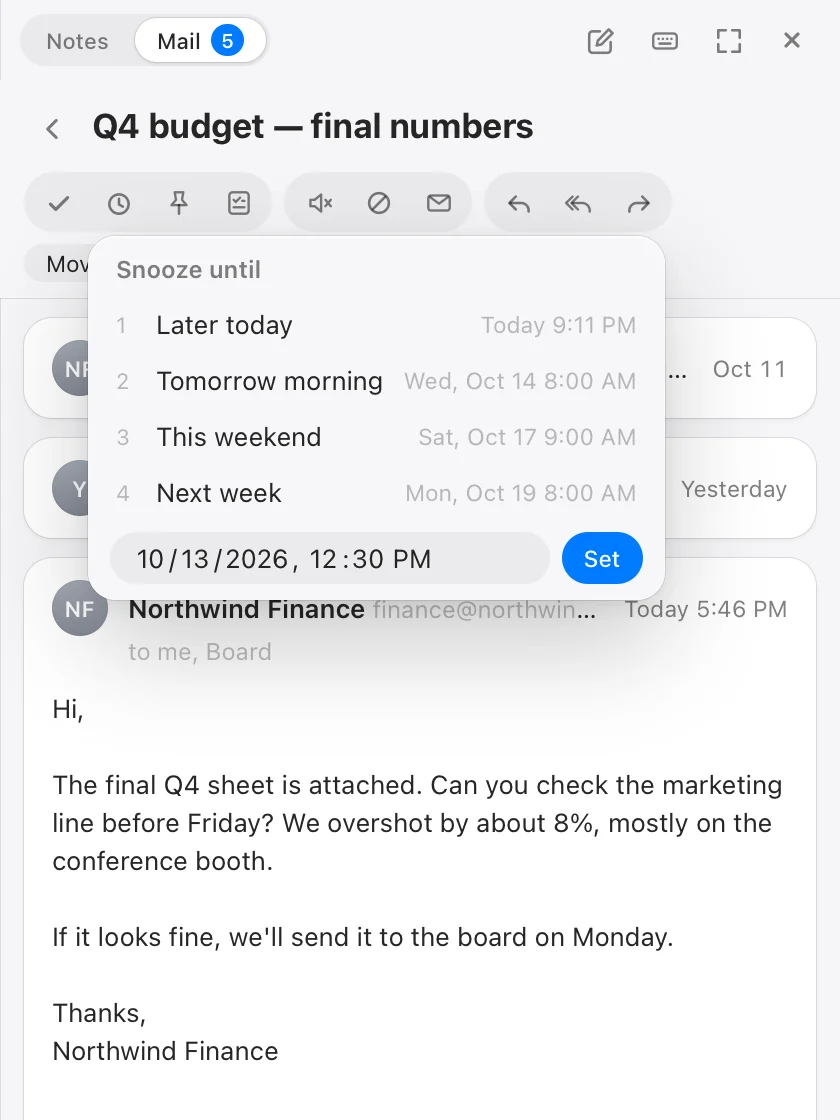
- Snooze offers Later today, This evening, Tomorrow morning, This weekend, Next week, or a time you pick. Later today, This evening and This weekend appear only while they're still ahead. The conversation comes back marked Back from snooze, or earlier if someone replies.
- Undo send holds every message for 10 seconds. Undo reopens the draft.
- Send later uses the same times and lists the message under Sending later with a Cancel button. If Octoweb was closed at that time, the message goes out at the next launch and tells you it went late.
- Remind me in the composer brings the conversation back marked No reply yet after 1 day, 3 days or a week, if nobody has answered.
The composer takes plain text with light markdown, quotes the original in replies, and threads properly. Drag files onto it to attach them. Drafts save as you type and survive a restart.
Search
Search runs on a local full-text index, so results show while you type. It understands from:, to:, has:attachment, is:unread, before: and after: with dates as YYYY-MM-DD. The first sync brings in the last 90 days. Press ↩ and Octoweb also asks the servers for older mail, and keeps what it finds. Your mail also turns up in the command palette: type / and a query, and matching mail shows above matching page text.
Attachments and images
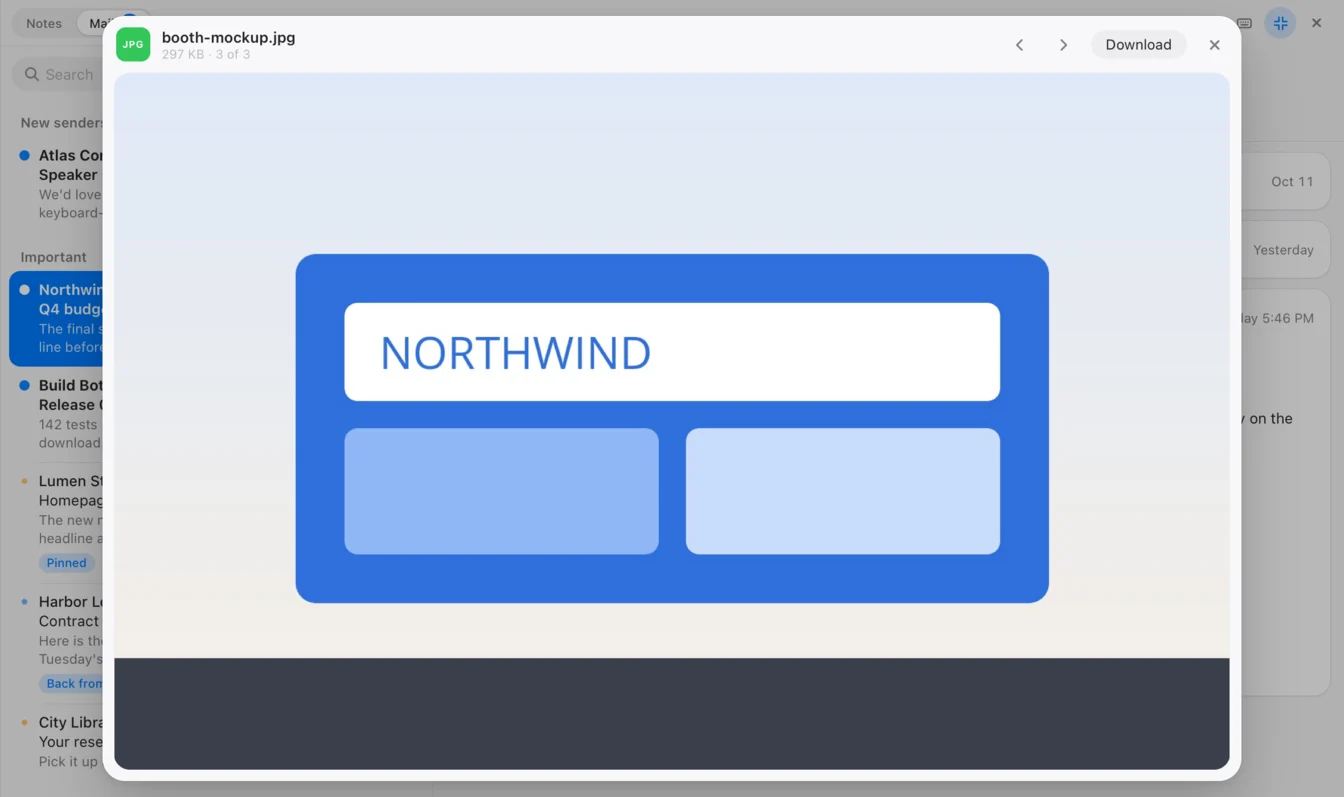
Click an attachment and it opens in a preview inside the pane: PDFs, images, and text files such as CSV, JSON and calendar invites. ← and → move between a message's attachments. Other files get a Download button, which saves to Downloads and shows the file in Finder.
Mail renders the way its sender designed it, remote images included, in a sandbox with no scripts. If you'd rather senders didn't know when you open their mail, turn on Settings → Mail → Block remote images. Images then stay hidden until you click Show for that message, or Always from that sender.
AI is off until you turn it on
The assistant's mail features stay off until you switch on Mail AI in Settings → Mail. With it on, the assistant in the sidebar can summarise a thread (s), pull tasks out of it into your notes, draft a reply in your voice for you to review, sort the inbox into Needs reply, Waiting on others, FYI and Can archive, or turn a plain-language question into a search. Two more switches add a one-line summary to each Important conversation as it arrives, and the sorted brief each morning. Nothing is ever sent for you.
For agents that drive Octoweb over MCP, there are seven new mail tools, so the same server works as a Gmail MCP server or an email MCP server for any IMAP account: mail_search, mail_list_inbox, mail_read_thread, mail_create_draft, mail_show, mail_set_summaries and mail_add_tasks. They work whether or not Mail AI is on, like the rest of the MCP server. An agent sees only the accounts of the workspace it's connected to. It can read, search, and put a draft in the composer, but no tool sends, archives, or deletes mail.
What stays on your Mac
Octoweb talks to your mail provider directly. There's no Octoweb server in between, and the privacy page spells out what's stored where. Synced mail lives in a local database, so it's readable offline, apart from messages over 1 MB, whose body loads when you open them; actions you take offline are queued and sent on reconnect. Snoozes, pins, mutes, sender choices and reminders live only on this Mac, so your phone won't see them. Removing an account deletes its local mail and its Keychain entries, and changes nothing on the server.
New Important mail shows a small notification inside Octoweb, unless the pane is already open on that workspace. Clicking it opens the conversation.
This first version has limits. There's no delete, spam folder, folder or label browsing, rules, or calendar. Only the inbox and Sent are synced, and new mail arrives within seconds over IMAP IDLE.
Markdown notes for each workspace
Every workspace now gets its own notes in the browser: a plain markdown file in ~/Library/Application Support/octoweb/notes/, created the first time you write or capture something. Press ⌘⇧J to open it in the same pane as Mail, which has a tab for each.
The quickest way in is ⌥⌘J on a page. With nothing selected, it adds a task linking to the page. With text selected, it adds the text as a quote with the link under it. Both land under today's date heading, which Octoweb adds when it isn't there yet.
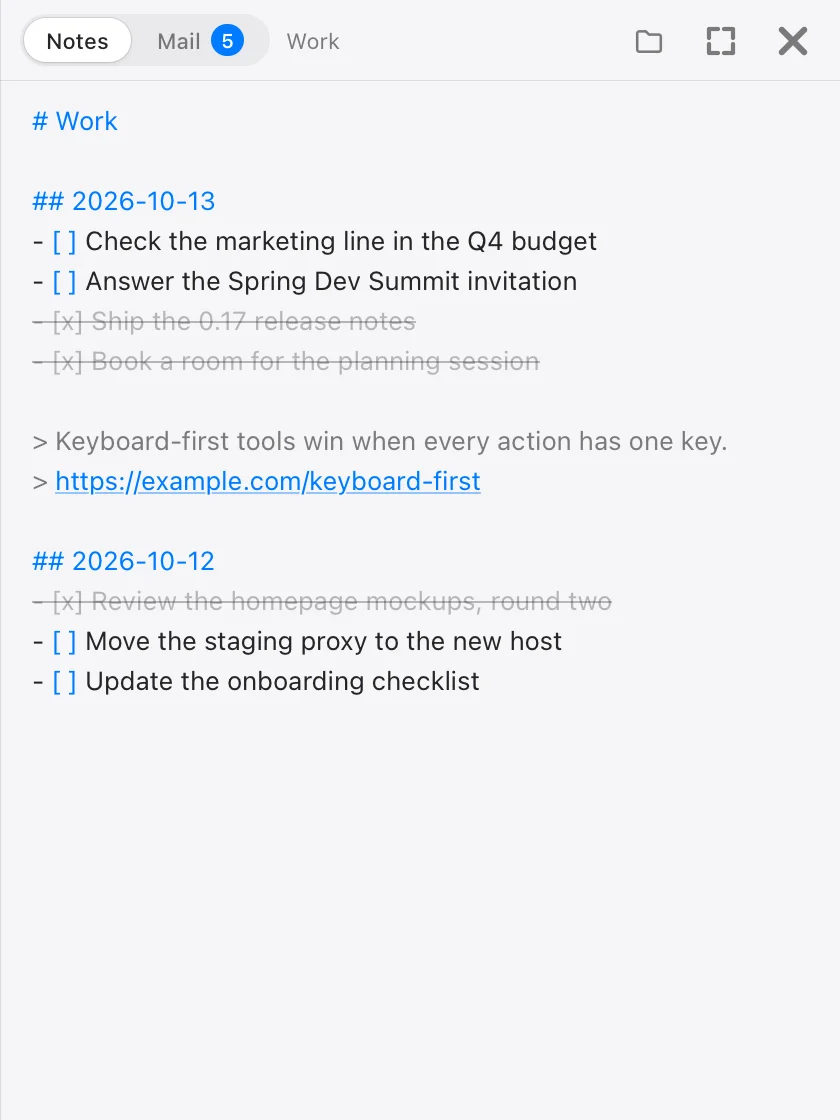
The editor stays plain text with a little color: headings, tasks, quotes and links. Click a [ ] to tick it, ⌘↩ turns the current line into a task, and ⌘-click opens a link, switching to its tab if it's already open. The file is the source of truth, so you can open it in any editor, and Octoweb picks up the changes when the pane gets focus. Show file in Finder is in the pane's header.
Mail and notes connect. Press t on a conversation and it becomes a task linked to the thread, and the thread is marked Done. Untick the task and the conversation comes back to the inbox; tick it again and it's Done. ⌘-click the link to open the thread in the Mail tab.
Chrome extensions
Octoweb now runs extensions from the Chrome Web Store, through Apple's own WebKit extension support. That support needs macOS 15.4 or later; on older versions Settings says so, and everything else works as before.
Add one in Settings → Extensions: paste its Web Store address or its 32-character id, or use Add from file… for an unpacked folder, a .crx, a .zip, or a .xpi. Before anything installs, a sheet lists what the extension can use and which sites it can read and change. Toolbar buttons appear in the address bar, popups open as native popovers, and context-menu items show up in the page's right-click menu.
Extensions follow workspaces the way cookies do:
- Each workspace keeps its own copy and storage. A password manager signed in to your work vault in one workspace doesn't see the personal one.
- A new extension runs only in the workspace you're in. Settings → Extensions → Runs in adds it to others, or to all workspaces, including future ones.
- Private tabs run no extensions.
There's no automatic update yet. Adding the same Web Store extension again updates it in place and keeps its data and workspaces. Remove asks you to click twice and deletes its data in every workspace.
The terminal comes back after a restart
In 0.16, quitting Octoweb closed every shell, and the next launch started empty. Now the terminal comes back the way you left it:
- every tab and split
- each pane's working directory
- each pane's recent output, up to 1 MB, with a dim
── restored ──line under it
The shells themselves are new. Programs that were running, and anything you'd set in the shell, are gone, so restart the dev server.
Terminals also belong to workspaces now. Each workspace has its own tabs and splits, and switching away leaves its shells running; switch back and they're as you left them.
Smaller terminal changes:
- A split starts in the directory of the pane you split from, not in your home folder.
- Option works as Meta by default, so
⌥F,⌥B,⌥Dand⌥⌫reach the shell as word keys, and⌥←/⌥→jump by word as in Terminal.app. Turn off Option as Meta in Settings to type characters such as ƒ. - Appearance in the Terminal section of Settings can keep the terminal Light or Dark whatever the rest of Octoweb uses.
- If you use Ghostty, the terminal takes Ghostty's colors when its light or dark mode matches your Ghostty theme. Octoweb reads them when it starts.
Smaller changes
- Hard reload.
⌘⇧Rreloads without the cache, so a rebuilt script or stylesheet is fetched fresh. - Window titles name the workspace. The title reads
[Workspace] Page title, and when the sidebar, terminal, notes or mail has the keyboard, it names that instead. Time trackers that read window titles can now tell your projects apart. - Link hints can stay on. With Keep link hints on in Settings → General,
⌘⇧Fhints stay through clicks, scrolling and page loads in that tab until you press it again. - Addresses with a port open. Typing
localhost:5173now openshttp://localhost:5173, andexample.com:8080/xor192.168.1.1:8080is read as a host and port. - A crash with per-site proxies is fixed. With a proxy set up, Octoweb could quit when macOS network settings changed.
For agents driving Octoweb
If you drive Octoweb with an agent over MCP, a few tools got more reliable:
- Back, forward and reload wait for the page and return its address, title and readiness, instead of answering before anything loaded. Back and forward say so when there's no page to go to.
- Clicks and key presses that navigate wait too, including route changes in single-page apps.
browser_reloadtakeshard: trueto skip the cache, andbrowser_waittakesnetworkidle.- Background tabs an agent is working in keep rendering. Pages that animate or redraw on every frame no longer freeze because the tab isn't on screen.
browser_snapshotfinds what's hidden. When the match is inside a closed menu or a collapsed section, the result names the button that opens it.browser_fill_formdoesn't submit when a field didn't keep its value.
The full list is on the MCP page.
Upgrade
brew upgrade --cask octoweb
You can also download it from the 0.17.0 release. The complete commit list is in the changelog. For the keyboard, see the shortcut reference, or press ⌘/ in Octoweb for the live list, remaps included.

Octoweb is free and open source, for macOS.
Install it →