Octoweb 0.16: a terminal, SSH tunnels, and per-site proxies
Octoweb 0.16.0 is out. The last release was about reading: remembering pages, following links, and keeping a queue. This one is about everything around the page. That means the terminal you keep switching to, the VPN you turn on for a single admin panel, and web apps that only half-work outside Safari. It also covers the agent, which now asks questions with buttons instead of paragraphs.
Here's what changed, starting with what you'll notice most, edge cases included.
brew upgrade --cask octoweb
A terminal under the page
A lot of work with AI now runs across two windows. The agent and the build live in a terminal, and what they produce shows up in the browser: the dev server, the docs, the pull request, the dashboard. So the day becomes a loop. You read the error on the page, switch to the terminal, run something, switch back, reload, and check. Put the two windows side by side and each gets half a screen. Stack them and you spend the day on ⌘Tab.
Press ⌘` and a terminal opens under the page, in the same window. The page stays in view above it. If the sidebar is open, the terminal stops at its edge, so the page, your shell, and the agent share one screen.
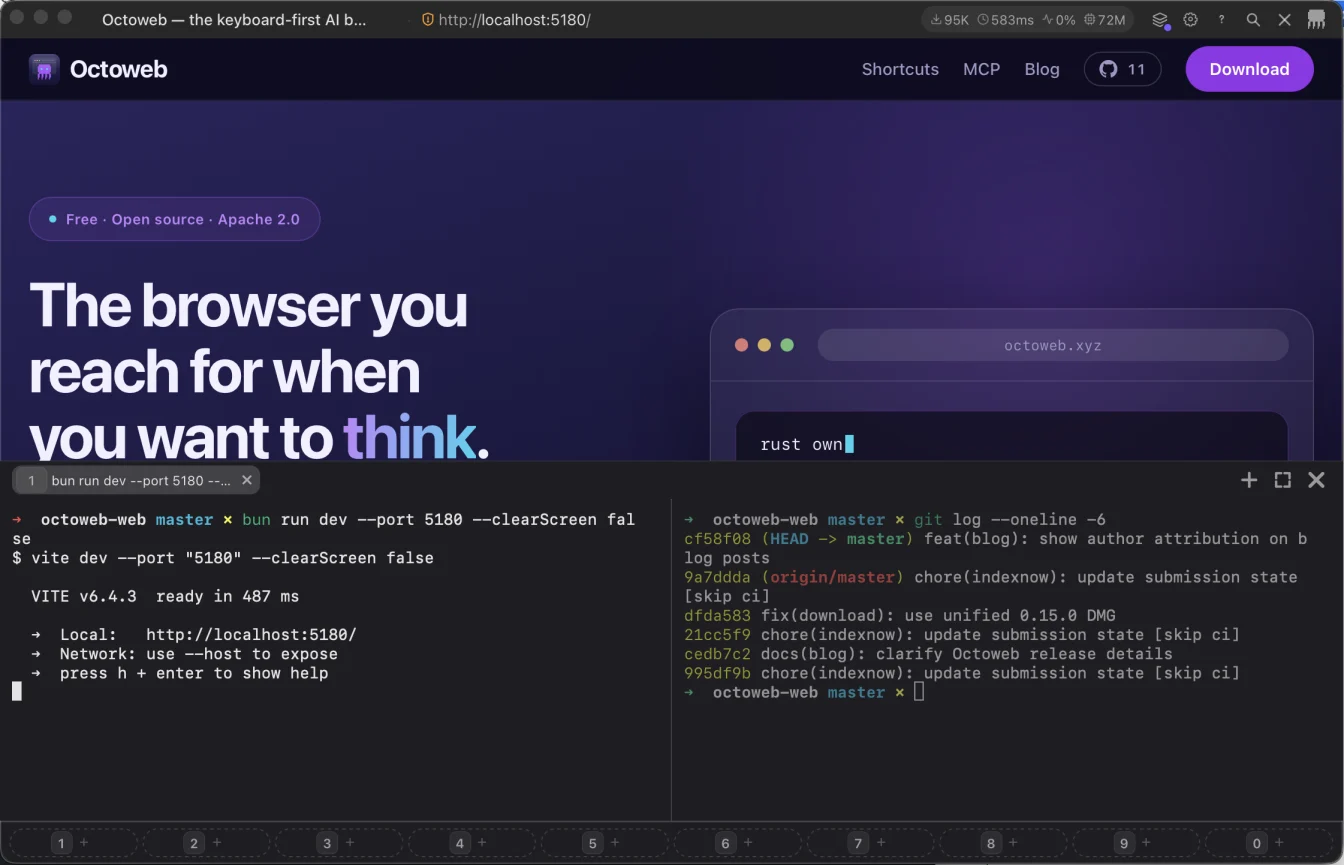
The page on top is this website. The left pane is serving it, and one click on the URL in its output opened the tab.
It's a real shell, not a console bolted onto a web page. Octoweb starts your login shell the way Terminal.app does, in your home folder, so your .zshrc, your PATH, and your aliases are all there. It reports itself as a 256-color, true-color terminal, so full-screen programs such as vim, htop, and the agent command-line tools draw properly. A few smaller details add up:
- Emoji take two cells instead of spilling over the next character.
- Box-drawing and block characters are drawn by the GPU renderer, so borders and progress bars show no seams between cells.
- Scrollback holds 10,000 lines.
- Octoweb sets a UTF-8 locale when macOS didn't pass one, so file names in other alphabets don't come out mangled.
⌃Cstops the program in front and job control works, because each shell runs in its own session.
Tabs, splits, and the keys
The panel holds tabs, and each tab can be split into panes. While the terminal has the keyboard, these keys act on it:
| Keys | What happens |
|---|---|
⌘` |
Show or hide the terminal |
⌘T |
New terminal tab |
⌘D / ⌘⇧D |
Split the focused pane beside / below |
⌘W |
Close the focused pane |
⌘[ / ⌘] |
Previous / next terminal tab |
⌘1–⌘9 |
Jump to terminal tab 1–9 |
⌘K |
Clear |
⌘⇧↵ |
Fill the page area, or dock again |
Splits nest, so you can split beside and then split one of those panes below. Panes you aren't typing in dim a little, so you always know where your keys will land. Closing the last pane in a tab closes the tab, and closing the last tab hides the panel. A tab takes its title from whatever the shell or program running in it sets, like a Terminal.app tab does.
Click the page or the sidebar and ⌘T, ⌘W, ⌘[, and ⌘] go back to their usual jobs. The toggle and the tab keys can be remapped in Settings like any other binding. The split, clear, and ⌘-digit keys are fixed.
The Control keys go the other way. Elsewhere in Octoweb, ⌃D, ⌃U, ⌃T, and ⌃B scroll the page, and ⌃N and ⌃P switch tabs. In the terminal they reach the shell untouched, so ⌃D still ends input and ⌃P still brings back the previous command. The command palette (⌘⇧P), the sidebar (⌘⇧A), workspaces (⌘⇧O), and Settings (⌘,) all still work from inside the terminal.
Links open in the browser
Click a URL in the output and it opens in a new tab. When npm run dev prints http://localhost:5173/, one click puts the app right above the terminal that serves it. The same goes for sign-in links that command-line tools print and the preview URL a deploy hands back.
What it keeps and what it drops
- Hiding isn't quitting.
⌘`or the ✕ hides the panel, and every shell keeps running. The dev server keeps serving, the build keeps building, and the agent in the other pane keeps working. Press⌘`again and everything is where you left it. - There is one terminal for the window. The panel doesn't belong to a workspace, so switching workspaces leaves it as it was.
- Closing hangs up. Closing a pane or a tab sends its shell a hangup, as closing a Terminal.app tab does. Shells don't outlive Octoweb, and terminals aren't restored on the next launch.
- The height sticks. Drag the top edge to resize the panel, or double-click it to go back to the default. With the edge focused,
↑and↓move it by 16 points, or 64 with⇧. Octoweb remembers the height across launches.
Two more things happen out of sight. A runaway command can't take the browser down with it: once 4 MB of output is waiting unread, the shell pauses until the panel catches up, instead of Octoweb's memory growing without limit. And keystrokes are redacted from Octoweb's debug output, so a password you type at a prompt can't end up in a log file.
The terminal is also yours alone. Agents that drive Octoweb over MCP have no tool for it. They can't read your shells or type into them, so nothing written on a web page can talk an agent into running a command there.
Per-site proxies: route only the sites that need it
Some pages only open from the right network. The admin panel accepts your office IP and nothing else. Staging sits behind a bastion host. A pricing page shows different numbers depending on the country you connect from, and you need to see what customers there see.
The usual fixes are blunt. A VPN sends every app on your Mac through the tunnel, including the video call you're on. A system-wide SOCKS proxy does the same, and it's easy to forget it's on. A proxy extension wants a PAC file, and a second browser profile means a second set of logins, windows, and bookmarks.
Octoweb 0.16 routes by site. Open Settings (⌘,), go to Proxies, and add one. Pick a type, list the sites, and switch it on:
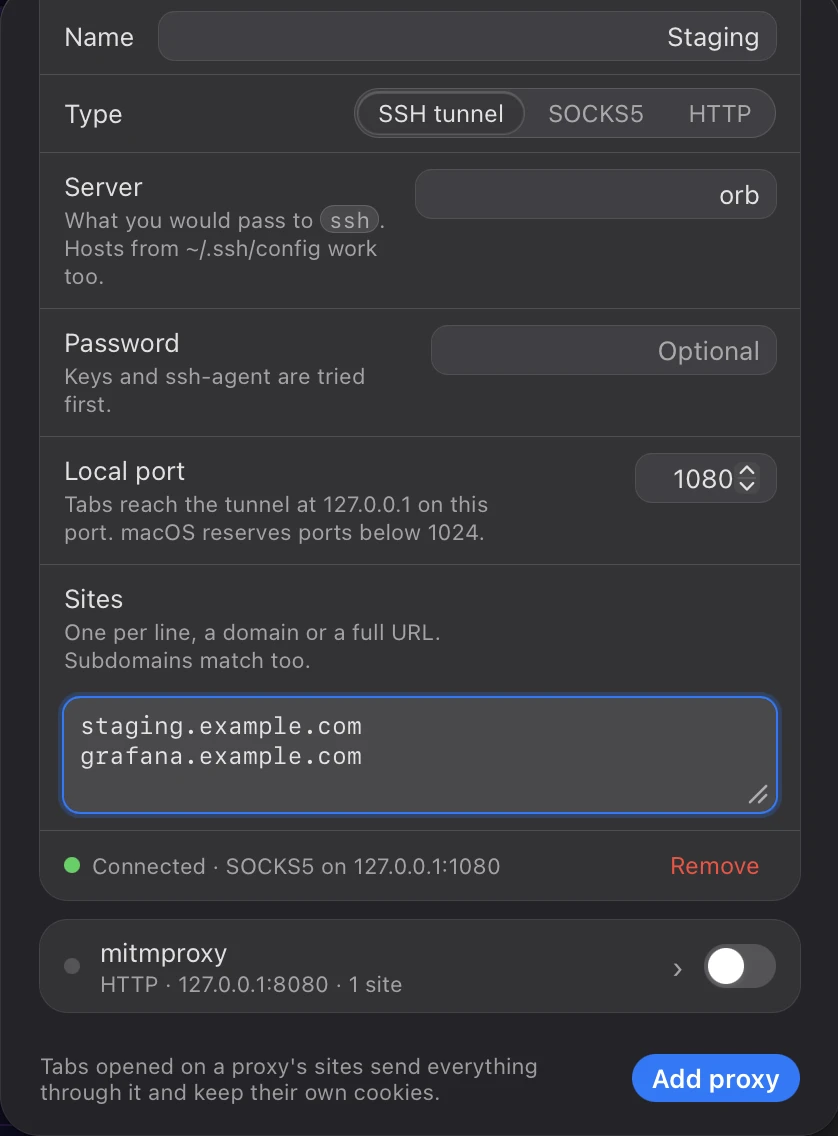
A tab opened on one of those sites sends everything through the proxy: the page, its scripts and images, requests to third parties, and every link you follow in that tab. All other tabs connect directly, as they always did.
Sites are forgiving. Put one per line. example.com, www.example.com, and a whole pasted URL all mean example.com plus its subdomains. notexample.com doesn't match, and neither does example.com.evil.net.
There are three types:
| Type | Use it for |
|---|---|
| SSH tunnel | Any server you can ssh into. Octoweb runs the tunnel itself, as described below. |
| SOCKS5 | A SOCKS proxy you already have, at a host and port. |
| HTTP | An HTTP proxy, such as your company's, or a debugging proxy like mitmproxy for only the site you're inspecting. |
SSH tunnels: the bastion in one field
The classic trick is ssh -D 1080 bastion in a terminal you have to keep open, plus a proxy setting you have to remember to undo. When the laptop sleeps, the tunnel dies, and pages just time out until you notice.
With an SSH tunnel proxy, Octoweb runs ssh for you and keeps it up. In Server, type what you'd type after ssh: user@server, ssh://user@server:2222, or a host from ~/.ssh/config. A host from your config brings the rest of its settings along, such as the user name, port, key file, and jump host.
- Sign-in works the way ssh does in your terminal. Keys and
ssh-agentcome first. If the server needs a password, type it once and it goes into the macOS Keychain. ssh asks Octoweb for it at connect time, so the password never shows up in a process list, an environment variable, or a file. Without a saved password, ssh fails fast instead of waiting at a prompt nobody can see. - It stays up. ssh checks the connection every 15 seconds and notices a dead one within about 45 seconds. When the tunnel drops, Octoweb restarts it after a second, backing off to 30 seconds between tries. Tabs that failed to load while it was down reload on their own once it's back, including the ones restored at launch before the tunnel connected.
- It tells you what's wrong. The status dot turns green once the tunnel is up, next to
Connected · SOCKS5 on 127.0.0.1:1080. When ssh fails, you see the last thing it said, such asPermission denied (publickey)., or that another program already holds the local port. That message stays up while Octoweb retries, so it doesn't flicker away before you read it. - New servers work on the first try. A host key Octoweb hasn't seen before is accepted on first connect, so there's no prompt to answer. A key that changed still fails, as it should.
Pick a local port of 1024 or higher, because macOS reserves the ones below. While Octoweb runs, the tunnel is an ordinary SOCKS5 proxy on your Mac, so other tools can use it too. That includes the new terminal:
curl --socks5-hostname 127.0.0.1:1080 https://admin.example.com/health
The tunnel stops when you switch the proxy off or quit Octoweb.
Know this before you switch one on
- A proxied site gets its own cookies. WebKit applies a proxy to a whole cookie store, so proxied tabs keep a separate store for each workspace and proxy. After you add a site, you'll sign in to it once more in the proxied tab. In return, the identity behind the proxy never mixes with your direct one.
- The route is picked when a tab opens. If you follow a link to a proxied site from a normal tab, that tab doesn't load it directly. That navigation is stopped and the link opens in a new, proxied tab. A proxied tab keeps its proxy for its whole life, even when you follow a link to some other site. If you add a site while it's open, its next page load moves to a new proxied tab.
- You need macOS 14 (Sonoma) or later. Per-site proxies rely on a WebKit feature that older versions don't have. On macOS 13, Octoweb ignores the rules.
Sites that broke, and why they work now
Safari isn't the only WebKit browser, but it's the one sites test against. A WebKit browser that isn't Safari differs in small ways, and big web apps trip over them. Four of those differences are gone.
- Google Sheets runs. The library Octoweb uses to host web pages put a global named
ipcinto every page and made it impossible to redefine. Sheets' own code declares a global function with the same name, so the browser threw an error and the whole Sheets script stopped. Pages no longer see any Octoweb globals at all. - The Sheets grid is sharp. WebKit asks the app hosting it where its window is and how big it is, and Octoweb never answered. Pages read
outerWidth,outerHeight,screenX, andscreenYas zero. Sheets works out your zoom level by dividingouterWidthbyinnerWidth, and with a zero it drew the grid at a quarter of your display's resolution. Pages now get the real window frame. - Video calls show the other side. Octoweb stops videos from playing automatically, which saves network, CPU, and memory on media-heavy pages. That rule also caught live call streams: in Yandex Telemost, the other person's camera and shared screen stayed a gray tile. Streams from a call are exempt now, and ordinary videos still wait for you to press play.
- Sites that look for Safari find it. Safari pages have a
window.safariobject, and some sites check for it to pick their Safari code path. µTorrent Web is one of them. On that path it loads its interface straight from your Mac, instead of through a route WebKit blocks as mixed content. Octoweb now provideswindow.safari. Its website push part always answers "denied", because Octoweb doesn't do web push notifications.
The sidebar
The agent installs itself
The sidebar runs octomind. The Homebrew cask installs it for you, but the DMG doesn't. So if you installed Octoweb by dragging it into Applications, opening the sidebar got you an error and a curl command to run.
Now, when octomind is missing and Homebrew is available, opening the sidebar installs it with brew install muvon/tap/octomind. The sidebar shows it's connecting while brew works, and several sessions opening at once wait for a single install. Without Homebrew, you still get the install instructions.
See the quota before you hit it
An agent spends quietly. Usually you find out the budget ran out when a turn fails halfway through a task.
The account card under the sidebar header now keeps the budget in view. Collapsed, it's a single row: your email, your plan, and a meter for whichever spend window is closest to its limit, with a percentage. The meter turns orange at 80% and red at 100%. Click the row to see the details:
- every spend window and when it resets, such as "resets in 3 days"
- your balance
- storage and network use for cloud resources
- when the numbers were last updated, with Refresh and Usage page ↗ buttons
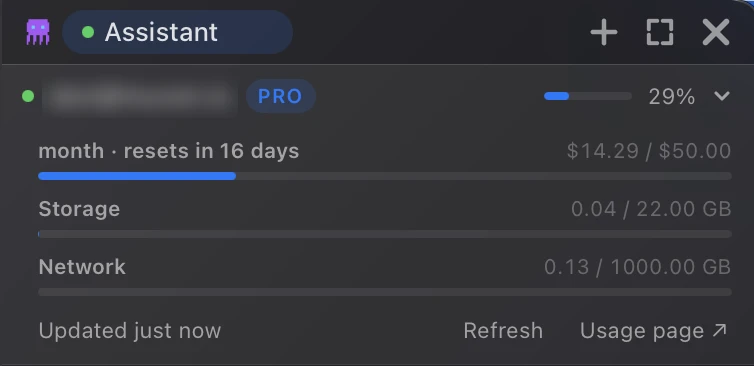
A few details keep the numbers honest:
- Spend already committed by running cloud machines counts as spent, so the headroom you see is the headroom you have.
- Opening the card re-reads usage if the numbers are more than 15 seconds old.
- When you run out, the card turns red, says Out of Octomind quota, and opens by itself.
- Signed out, it says Not signed in to Octomind and offers Sign in. Running octomind on your own provider keys is a normal setup, so you can dismiss the card, and it comes back only when something changes.
- Signing in shows the device code with a Copy code button while the verification page opens in a tab.
Octoweb remembers whether you leave the card open or collapsed.
Buttons, not "reply A, B, or C"
Chat agents love to end with a question you have to type the answer to: "Option 1 or option 2?", "Want me to open it?", "Shall I post this?". You read it, type 2 or yes, and hope it knows which question you meant.
When a question has a fixed set of answers, the assistant now asks it through real controls in the sidebar. You get a row of buttons, a picker, an approval card, or a single form in place of five rounds of questions. Questions in prose are left for answers only you can write.
- Anything irreversible waits for a click. Before posting, sending, submitting, buying, deleting, or scheduling, the assistant shows an approval card and waits. The click is the yes, and approving one draft approves only that draft.
- The reminder sits next to your words. The assistant's instructions spell these rules out, and every turn now also carries a one-line reminder right next to your message, where it holds more weight than instructions at the top of the conversation.
- Octoweb meets the model halfway. Models tend to make the same two slips when they draw a card. Some create a card and update it in one call but name it only once, and some send the whole card as one string of JSON. Octoweb used to reject both, and the rejections taught models to give up on cards and fall back to prose. Now it repairs them.
- A card waits for you. An agent stops waiting for your click after 30 minutes, but the card stays live. Click it later and your answer reaches the agent as a new message. Meanwhile the agent tells you in one line that the card is waiting, instead of repeating its options in prose.
The AI button in the address bar is now the Octoweb octopus instead of sparkles. It's gray at rest and turns purple while the sidebar is open, so you can tell at a glance.
Light or dark, and pages follow
macOS has one appearance switch for everything. Maybe you like a dark Mac and a light browser for reading, or a dark browser at night while everything else stays light. Websites pick their theme from your Mac's setting, so until now they followed macOS, not you.
Settings → General → Appearance now offers Auto, Light, and Dark. Auto follows macOS, as before. Light and Dark switch the whole browser at once: the address bar, sidebar, palette, terminal, Settings, and every open page. Pages see your choice as their prefers-color-scheme, so any site that ships a dark theme follows it.
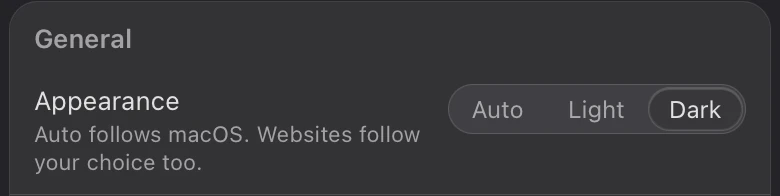
Octoweb doesn't repaint pages itself, so a site with no dark theme stays light.
Hold to reorder workspaces and quick slots
Workspace numbers came from the order you created them in. To put your main workspace on ⌘1, you had to rebuild the ones in front of it. Quick slots were no better: moving a pin meant removing it and saving it again under another number.
Now press and hold a workspace in the switcher (⌘⇧O), or a pin in the quick-slot bar, for a quarter of a second, then drag it. A line shows where it will land. Let go to drop it, or press Esc to cancel. A quick click still does what it always did.
Reordering changes numbers and nothing else. A workspace keeps its tabs, cookies, and agent sessions, and the one you're in stays active. Drop a pin on an empty slot and it takes that number. Pins between the old and new spot shift over by one, the way items in a list do.
Upgrade
brew upgrade --cask octoweb
You can also download it from the 0.16.0 release. The complete commit list is in the changelog. For the keyboard, see the shortcut reference, or press ⌘/ in Octoweb for the live list, remaps included.

Octoweb is free and open source, for macOS.
Install it →